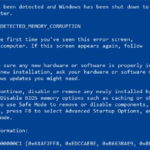


Windows system files are vital components of your operating system that ensure its smooth and stable functioning. However, these files can become corrupted due to various factors, leading to system instability, crashes, and errors. We will explore the steps to repair corrupted Windows system files effectively, helping you restore your system’s health and performance.
Step 1: Run System File Checker (SFC) Scan
Windows provides a built-in tool called System File Checker (SFC) that scans your system for corrupted files and attempts to repair them. Follow these steps to run an SFC scan:
- Press the Windows key + X on your keyboard and select “Command Prompt (Admin)” or “Windows PowerShell (Admin)” to open an elevated command prompt.
- In the command prompt window, type “sfc /scannow” (without quotes) and hit Enter. The scan may take some time to complete.
- Once the scan finishes, the SFC tool will attempt to repair any corrupted files it detects. If successful, restart your computer and check if the issue is resolved.
Step 2: Use DISM (Deployment Image Servicing and Management) Tool
If the SFC scan doesn’t fix the corrupted files, you can utilize the DISM tool to repair your Windows image. Follow these steps:
- Open an elevated command prompt as mentioned in Step 1.
- Type the following command and press Enter:
DISM /Online /Cleanup-Image /RestoreHealth
3. The DISM tool will download and replace any damaged or missing files from Windows Update or a specified source. Be patient as this process may take a while, depending on your internet speed.
4. Once the DISM tool completes the repair process, restart your computer and check if the issue is resolved.
Step 3: Perform a Windows Update
Keeping your Windows operating system up to date is crucial for its stability and security. Sometimes, outdated system files can cause corruption issues. Here’s how to perform a Windows Update:
- Press the Windows key on your keyboard and type “Windows Update” in the search bar. Open the “Windows Update settings” option.
- Click on “Check for updates” to search for available updates. If any updates are found, click “Install” to download and install them.
- Restart your computer after the updates are installed.
Step 4: Utilize System Restore
If the previous steps fail to repair the corrupted files, you can try using the System Restore feature. This option allows you to revert your system back to a previous point in time when it was functioning correctly. Follow these steps:
- Press the Windows key and type “System Restore” in the search bar. Open the “Create a restore point” option.
- In the System Properties window, click on “System Restore.”
- Follow the on-screen instructions to choose a restore point and start the restoration process.
- Once the system is restored, check if the corrupted files have been repaired.
Repairing corrupted Windows system files is crucial to ensure the smooth and stable functioning of your computer. By following the steps outlined in this guide, you can effectively repair the corrupted files and restore your system’s health. Remember to regularly update your system and maintain a reliable backup strategy to prevent file corruption issues in the future.