

A warm computer is not necessarily an overheating computer. Modern processors generate heat whenever they work, especially during demanding tasks such as gaming, video editing, software compilation or rendering. Here are the reasons of PC overheating.
However, excessive heat can cause noticeable performance problems. Your fans may suddenly become much louder, the computer may slow down under load, applications may stutter, or the system may shut itself down unexpectedly.
Modern processors include thermal protection mechanisms. For example, when an Intel processor reaches its thermal limit, it can reduce its frequency and power—a process commonly called thermal throttling—to control temperature. If that is not enough, the system can shut down to protect the hardware.
So how can you tell whether your PC is genuinely overheating, and what should you do about it?
Warning Signs of PC Overheating
Heat alone does not prove that something is wrong. A laptop can become noticeably warm during a demanding workload and still operate within its designed limits.
Instead, watch for several symptoms occurring together.
Common warning signs include:
- Fans becoming unusually loud for extended periods
- Sudden performance drops
- Games or applications beginning to stutter
- Reduced processor speed
- Unexpected shutdowns or restarts
- A computer chassis becoming unusually hot
- High temperatures persisting even after the workload has stopped
Intel specifically identifies general system slowness, CPU throttling, excessive fan noise and automatic shutdown among potential symptoms of processor overheating.
If your computer becomes hot only during a heavy workload and quickly settles afterward, that alone may not indicate a fault. Short temperature spikes can occur during normal processor operation.
1. Dust Is Blocking the Cooling System
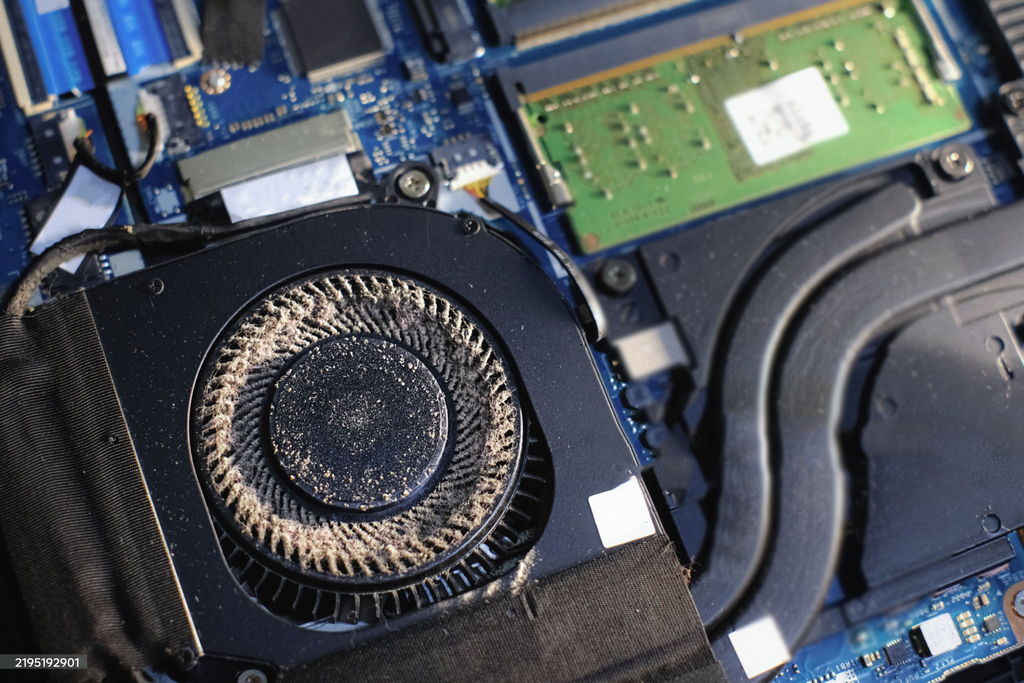
Dust is one of the first things to investigate when an older computer begins running hotter than usual.
Cooling fans move air through the computer, but they also pull dust and lint into vents, fan blades and heatsinks. Over time, that buildup can restrict airflow.
A heatsink covered in dust cannot transfer heat as efficiently, while a clogged intake makes it harder for the cooling system to obtain fresh air.
Intel recommends checking fans, heatsinks, intake vents and exhaust vents for excessive dust when troubleshooting overheating.
What Should We Do?
Turn the computer off before cleaning it.
Clean accessible ventilation openings carefully. If you know how to safely open your desktop or laptop, inspect the fans and heatsinks for accumulated dust.
Avoid aggressively disassembling unfamiliar hardware. Laptop cooling assemblies in particular can be difficult to access, and manufacturer-specific procedures vary.
If you are uncomfortable opening the machine, professional cleaning may be the safer option.
2. Your Air Vents Are Blocked
Even a perfectly clean cooling system cannot work properly if the computer cannot breathe.
This is particularly important with laptops.
Using a laptop on a bed, blanket, sofa or other soft surface can obstruct ventilation openings. The computer then has difficulty drawing in cool air or exhausting hot air.
Place the laptop on a hard, stable surface that leaves its vents unobstructed.
For desktop computers, avoid pushing the case tightly against a wall or enclosing it in a cabinet with little ventilation.
Good cooling requires somewhere for cool air to enter and somewhere for hot air to escape.
3. The Cooling Fan Is Not Working Properly
A cooling fan does not have to stop completely to cause trouble.
A failing fan may:
- Spin more slowly than intended
- Make grinding, ticking or rattling noises
- Start and stop unexpectedly
- Struggle to spin because of dust
- Stop working entirely
Intel notes that fan problems can produce excessive noise, crashes, reboots and increased system temperature.
If you hear a new mechanical noise coming from a fan, do not automatically assume that louder means better cooling.
The fan itself may need cleaning, inspection or replacement.
4. A Program Is Keeping the CPU Busy
Sometimes the cooling system is not the original problem.
A program running continuously in the background may keep the processor under heavy load, which creates additional heat and forces the fans to work harder.
On Windows, open Task Manager by pressing:
Ctrl + Shift + Esc
Check the Processes section and look at CPU usage.
If one application is consuming an unusually large amount of processor resources when you are not doing anything demanding, investigate it before assuming the hardware is defective.
If high temperatures are accompanied by poor performance, our guide to fixing a slow-running computer covers additional causes worth checking.
Microsoft describes Task Manager as a system-monitoring tool that displays CPU load, memory usage, disk activity and other resource consumption.
Do not randomly terminate Windows processes you do not recognize. First determine what the process does and whether it is safe to stop.
5. The Thermal Paste or Cooling System May Need Attention
Between a processor and its heatsink is a thermal interface material designed to help transfer heat.
If the heatsink is installed incorrectly, has become loose, or the thermal interface material has degraded, heat transfer may become less effective.
This is more relevant to older computers, recently modified systems or machines where the cooling assembly has previously been removed.
Intel includes proper heatsink installation and thermal interface material among the areas to inspect when diagnosing processor overheating.
However, replacing thermal paste should not be the first solution attempted every time a computer feels warm.
Check the simpler causes first: airflow, dust, fan operation and excessive CPU usage.

6. The Room Itself Is Too Hot
Your computer ultimately transfers its heat into the surrounding air.
That becomes more difficult when the surrounding air is already hot.
A computer that behaves normally in a cool room may run noticeably warmer during hot weather, particularly when performing sustained workloads.
Keep the computer away from direct sunlight and heat sources. Make sure there is sufficient space around ventilation openings.
You do not need to keep your room extremely cold. The objective is simply to give the cooling system reasonable conditions in which to operate.
7. Heavy Workloads Naturally Generate More Heat
Gaming, video rendering, 3D work, AI workloads and other CPU- or GPU-intensive tasks can significantly increase power consumption and heat generation.
That is normal.
The important distinction is between high temperature under a demanding workload and a genuine cooling failure.
Intel notes that processors may approach high temperatures during demanding workloads without this automatically indicating a problem. Modern processors continuously monitor temperature and adjust their operating behavior accordingly.
If the computer remains stable, performs normally and cools down when the workload ends, high load temperatures may simply reflect normal operation.
What Is Thermal Throttling?
Thermal throttling is a protective mechanism.
When a processor reaches its thermal limit, it can reduce clock speed and power consumption to decrease heat output.
The consequence is reduced performance.
For example, a game that initially runs smoothly may begin stuttering after the computer has been under heavy load for some time. A rendering task may suddenly become slower even though nothing else appears to have changed.
Intel describes throttling as reducing processor clock speed when the system reaches its thermal threshold.
Throttling therefore protects the processor, but frequent thermal throttling can also indicate that the cooling system deserves investigation.
How Hot Is Too Hot?
There is no single temperature that applies to every CPU, GPU, laptop and desktop.
This is important.
Processor thermal limits vary by model and system design. Intel, for example, says the maximum junction temperature varies by product and that users should check the specifications for their particular processor rather than relying on a universal number.
That means advice such as “anything above exactly 80°C is dangerous” is too simplistic.
A better approach is to identify your CPU or GPU model and check the manufacturer’s specifications.
Also consider behavior, not just the number.
Persistent throttling, unexpected shutdowns, severe performance loss or fans behaving abnormally can tell you more than one isolated temperature reading.
How to Reduce PC Temperatures
If you suspect genuine overheating, start with the easiest and safest measures:
- Make sure all vents are unobstructed.
- Move a laptop onto a hard, flat surface.
- Check for excessive CPU usage in Task Manager.
- Clean dust from accessible vents and cooling components.
- Check whether cooling fans are operating normally.
- Improve airflow around the computer.
- Avoid unnecessary heavy workloads while diagnosing the problem.
- Check the manufacturer’s guidance for your specific computer.
If the problem continues, the cooling system itself may require service.
For desktops, this could involve inspecting the heatsink, fans, thermal interface material or case airflow.
For laptops, professional servicing is often preferable if accessing the cooling assembly requires substantial disassembly.
Can PC Overheating Cause Permanent Damage?
Modern processors are designed with safeguards against excessive temperature.
Intel states that processors can first reduce power and frequency and, if they still cannot maintain a safe operating condition, automatically shut down to help prevent permanent damage.
That does not mean persistent overheating should be ignored.
Repeated thermal problems can hurt performance, cause instability and indicate that a fan, heatsink, airflow path or another part of the cooling system is not working as intended.
A computer repeatedly shutting itself down because of temperature is telling you that something needs attention.
Final Thoughts
A hot PC does not automatically mean a damaged PC.
Computers generate heat, and modern processors are designed to manage significant temperature changes as workloads increase and decrease.
The real warning signs are persistent excessive fan noise, throttling, unexplained performance loss, abnormal fan behavior and unexpected shutdowns.
Start with the simple fixes. Check airflow. Keep vents clear. Look for dust. Check CPU usage. Make sure the fans are working.
If those steps do not solve the problem, investigate the cooling hardware or contact the computer manufacturer or a qualified technician.
Keeping a computer cool does not require obsessing over every temperature reading. It requires giving the cooling system what it needs to do its job.