
Windows 11 works reasonably well with its default settings, but that does not mean every default is ideal for every user. Here are 10 Windows 11 settings worth checking right now.
Some settings affect privacy. Others determine which apps launch when you start your computer, what notifications interrupt you, how Windows uses your internet connection, and which apps can access your location, camera and microphone.
Fortunately, you do not need special software or complicated Registry modifications to improve the experience.
1. Disable Unnecessary Startup Apps
One of the easiest ways to improve the Windows startup experience is to review which applications automatically launch when you sign in.
Many programs add themselves to startup during installation. Over time, you may end up launching several applications every time Windows starts—even if you rarely use them.
Go to:
Settings → Apps → Startup
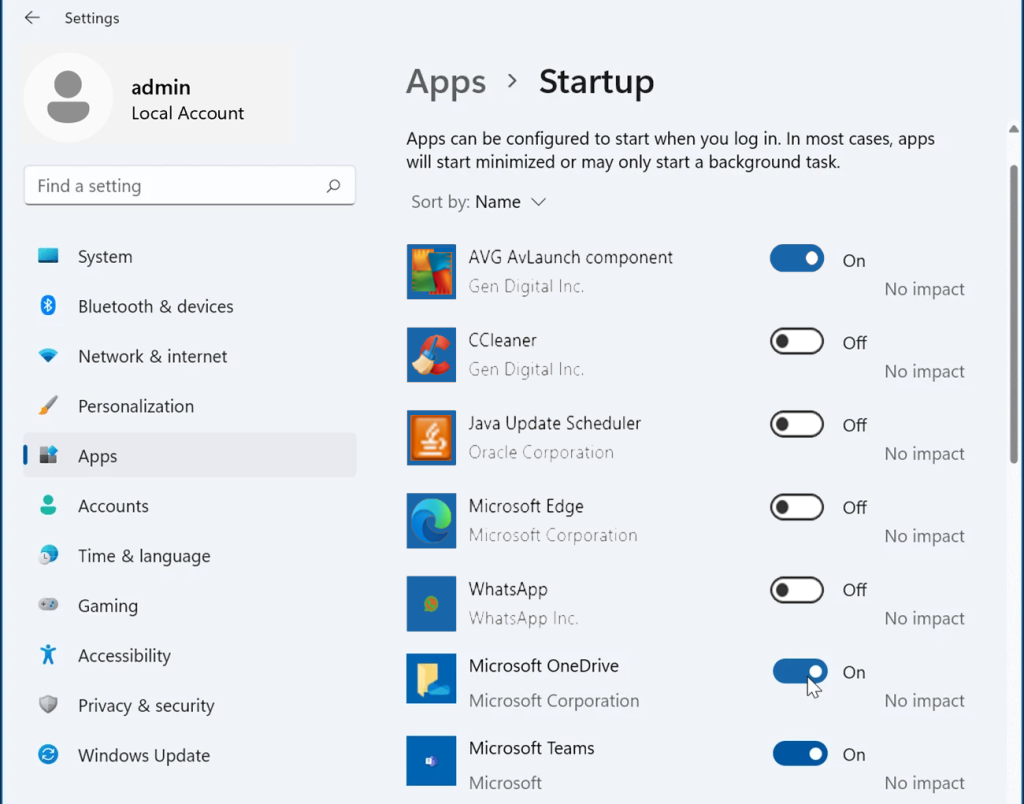
Windows displays the applications configured to start automatically. Review the list and turn off programs you do not need immediately after signing in.
Pay particular attention to applications marked as having a high impact on startup.
Do not disable security software, hardware utilities or other applications you know are essential simply because they appear in the list.
The goal is not to disable everything. It is to stop unnecessary programs from consuming resources before you even start working.
If your PC still feels slow after reviewing startup apps, see our guide to fixing a slow-running computer for additional troubleshooting steps.
2. Review Your Privacy Permissions
Windows applications can request access to sensitive features and information, including your location, camera, microphone, contacts and other data.
Go to:
Settings → Privacy & security
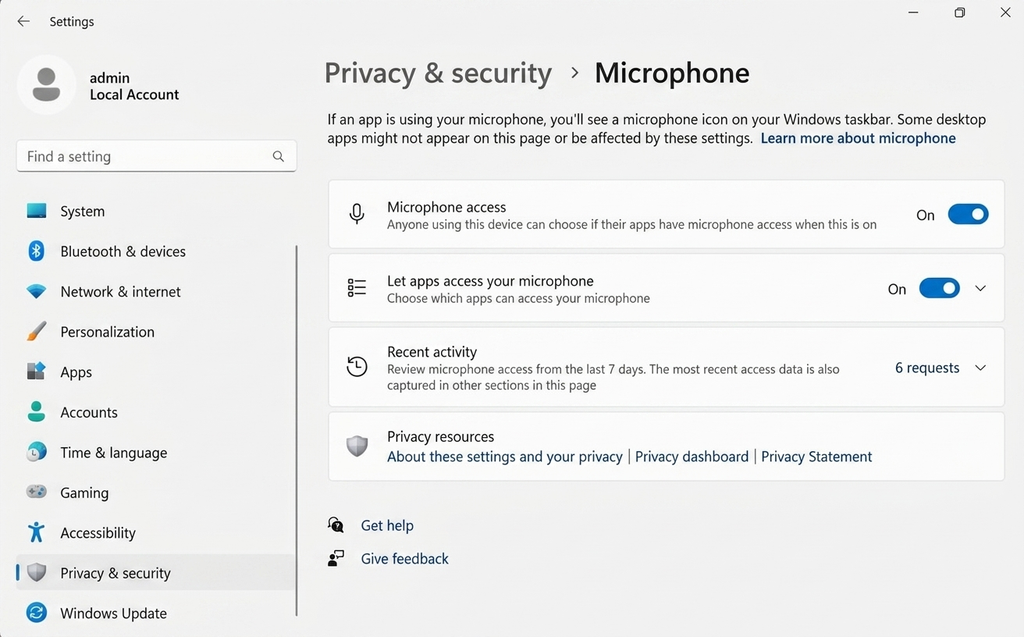
Then review the individual permissions under App Permissions.
For example, check:
- Location
- Camera
- Microphone
- Notifications
- Contacts
- Pictures
- Videos
- File system
Ask a simple question for each permission:
Does this application actually need this access?
A video-conferencing application obviously needs your microphone. A maps application may legitimately use your location. But an unrelated application may have no good reason to access either.
Instead of switching every permission off, remove access selectively from applications that do not need it.
3. Review Diagnostic Data Settings
Windows collects diagnostic information to help Microsoft maintain and improve the operating system.
You can review these settings at:
Settings → Privacy & security → Diagnostics & feedback
Windows distinguishes between required diagnostic data and optional diagnostic data.
If you prefer to minimize the additional information sent from your computer, review whether Send optional diagnostic data is enabled and choose the setting that matches your privacy preference.
This section can also contain options related to personalized experiences and diagnostic-data viewing.
Privacy is not necessarily about disabling every feature. It is about understanding what information you are sharing and making an informed choice.
4. Turn Off Recommendations You Don’t Want
Windows 11 can display recommendations, suggestions and promotional content in different parts of the interface.
Some people find these helpful. Others consider them unnecessary distractions.
Start by visiting:
Settings → Privacy & security → General
Review options related to suggested content and personalization.
Depending on your current version of Windows 11, Microsoft may also provide recommendation controls elsewhere in Settings.
If you do not find Microsoft’s suggestions useful, disabling unnecessary recommendations can make Windows feel cleaner and less promotional.
5. Control Which Apps Can Use Your Location
Location services can be useful for maps, weather, Find my device and other location-aware features.
But that does not mean every application should have access to your location.
Go to:
Settings → Privacy & security → Location
You can decide whether location services should be available and review which applications are permitted to use them.
For many users, the best approach is not necessarily to disable location completely. Instead, keep it available for features that genuinely benefit from it while denying access to applications that have no reason to know your location.
Remember that some traditional desktop applications behave differently from Microsoft Store apps and may not appear under the same per-app permission controls.
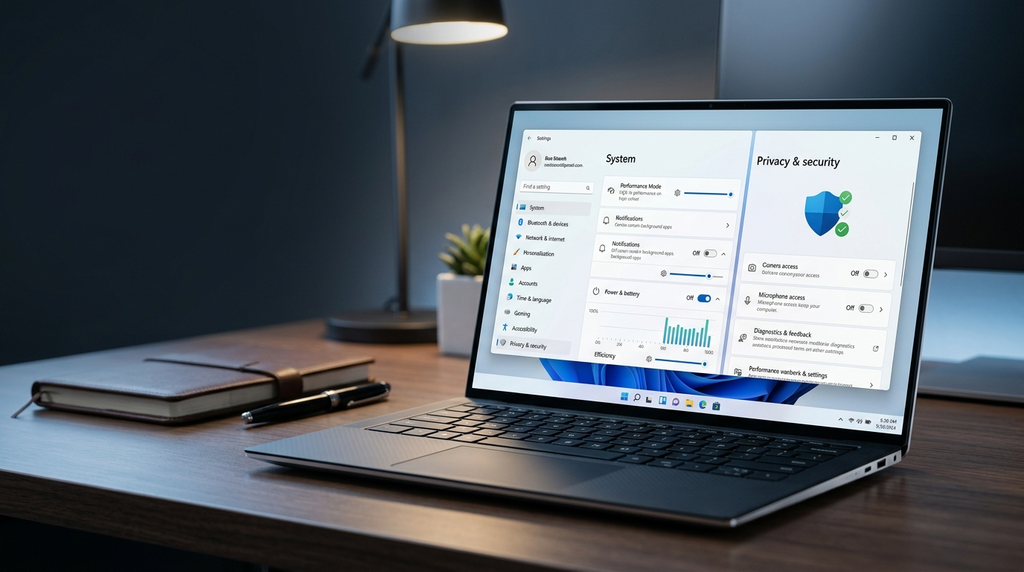
6. Reduce Unnecessary Notifications
Notifications are useful until every application decides it deserves your immediate attention.
Go to:
Settings → System → Notifications
Review the applications allowed to send notifications.
Keep notifications enabled for applications where an alert could genuinely matter. Disable them for games, promotional applications and other programs whose notifications usually interrupt rather than help you.
Windows also provides additional notification controls, so you can customize the experience rather than simply turning all notifications off.
A quieter notification panel can make a surprisingly large difference when you are trying to work.
7. Review Delivery Optimization
Windows uses Delivery Optimization to help download Windows updates and Microsoft Store applications.
The feature can obtain parts of updates from other computers and, depending on your settings, your computer can also provide update data to other devices.
Go to:
Settings → Windows Update → Advanced options → Delivery Optimization
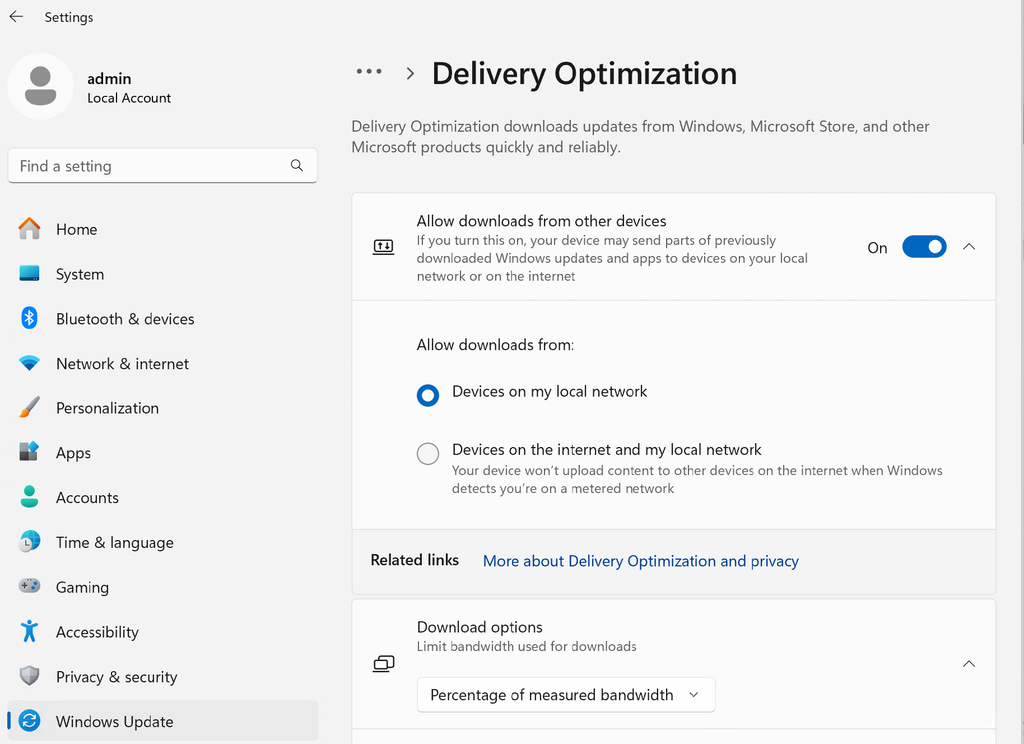
Review Allow downloads from other devices.
If you have several Windows computers on the same local network, Delivery Optimization can be useful.
If you do not want your computer exchanging update data with other PCs, you can disable the feature or restrict it according to the options Windows provides.
This setting is particularly worth checking if you use a limited or metered internet connection.
8. Turn On Storage Sense
Running out of storage can eventually affect your ability to install applications and Windows updates and can make general computer maintenance more difficult.
Windows includes a built-in feature called Storage Sense.
Go to:
Settings → System → Storage

Look for Storage Sense.
When configured, Storage Sense can automatically remove certain unnecessary temporary files and help manage storage without requiring a third-party cleaning application.
Before enabling aggressive cleanup options, however, review exactly what Windows is allowed to remove—particularly anything involving downloaded files or cloud content.
Automation is useful only when you know what it is automating.
9. Check Your Power Mode
Windows can balance performance and energy consumption differently depending on how you use your computer.
Go to:
Settings → System → Power & battery
Look for the available Power mode setting.
A laptop used away from a charger may benefit from an efficiency-oriented mode, while a desktop or plugged-in laptop performing demanding work may benefit from a performance-oriented setting.
The most aggressive performance mode is not automatically the best choice.
More performance can mean greater power consumption, more heat and potentially more fan noise.
Choose the mode that fits what you actually do with the computer.
10. Check Your Default Apps
Have you ever clicked a link or opened a file only for Windows to launch an application you did not want?
Review your defaults.
Go to:
Settings → Apps → Default apps
Here you can control which applications Windows uses for web browsing, media, documents and different file types or link types.
Set your preferred browser, media applications and other frequently used programs.
This will not dramatically increase computer performance, but it can remove one of the most common everyday annoyances in Windows.
Don’t Change Settings Just Because Someone Tells You To
There are countless Windows optimization guides online recommending that users disable services, edit the Registry, remove system components or run scripts they do not understand.
Be careful.
A useful Windows optimization should have a clear purpose.
Changing a setting because you understand what it does is very different from copying dozens of mysterious commands from a video promising to make your PC “200% faster.”
For most people, Windows can be improved substantially through the normal Settings application without risky modifications.
If you’re still using Windows 10, read our guide to whether Windows 10 is still safe to use in 2026 before deciding whether to stay with it or upgrade.
Which Windows 11 Settings Should You Change First?
If you only have a few minutes, start with three areas:
Startup apps, privacy permissions and notifications.
They can make an immediate difference without requiring advanced technical knowledge.
Then review diagnostic data, location access, Delivery Optimization, storage management, power settings and default applications according to your needs.
Windows 11 does not need to be heavily modified to work well.
Sometimes, a few carefully chosen settings are all it takes to make your computer quieter, cleaner, more private and better suited to the way you actually use it.